Search This Blog

Showing posts with label resize picture. Show all posts

Wednesday, January 26, 2011

Downsize a picture attachment using Windows 7 and Microsoft Outlook

This is a great option for Windows 7 users:
  1. Select one or more picture files in an Explorer window.
  2. Right click on a file name and choose Send to/ Mail recipient from the menu. The Attach Files dialog box will appear.
  3. Choose Smaller, Small, Medium (the default 1024x768), Large, or Original Size.
  4. Click the Attach button and a new message will be created with the images attached and sized as you have selected.


Downsize a picture attachment in Outlook 2010

After you have attached an image to a message in Outlook 2010, click the File tab. The backstage view of the message window will open in the Info category. Choose the option at the top to "Resize large images when I send this message." Images will be a reduced to a maximum of 1024x768 pixels, which must be done on a per-message basis. Click the File tab again to return to the message window.

Downsize a picture attachment in Outlook 2007

If you email photos using Microsoft Outlook 2007, you might like a quick and easy way to "shrink" the file size.

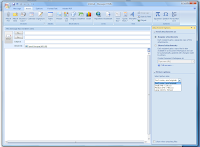
After you attach a photo, click the Insert tab on the ribbon, and then click the dialog box launcher in the bottom right corner of the Include tool group. The Attachment Options task pane will open on the right side of the message window.
Notice the Picture Options area in the bottom half of the pane: click the drop down arrow and choose to resize your picture to Small, Medium, or Large size. You might want to click the check box at the bottom of the pane to automatically "Show when attaching files."